
 AI Search Engine
 AI Image Generator
 AI Youtube Analyzer
 Whatsapp Integration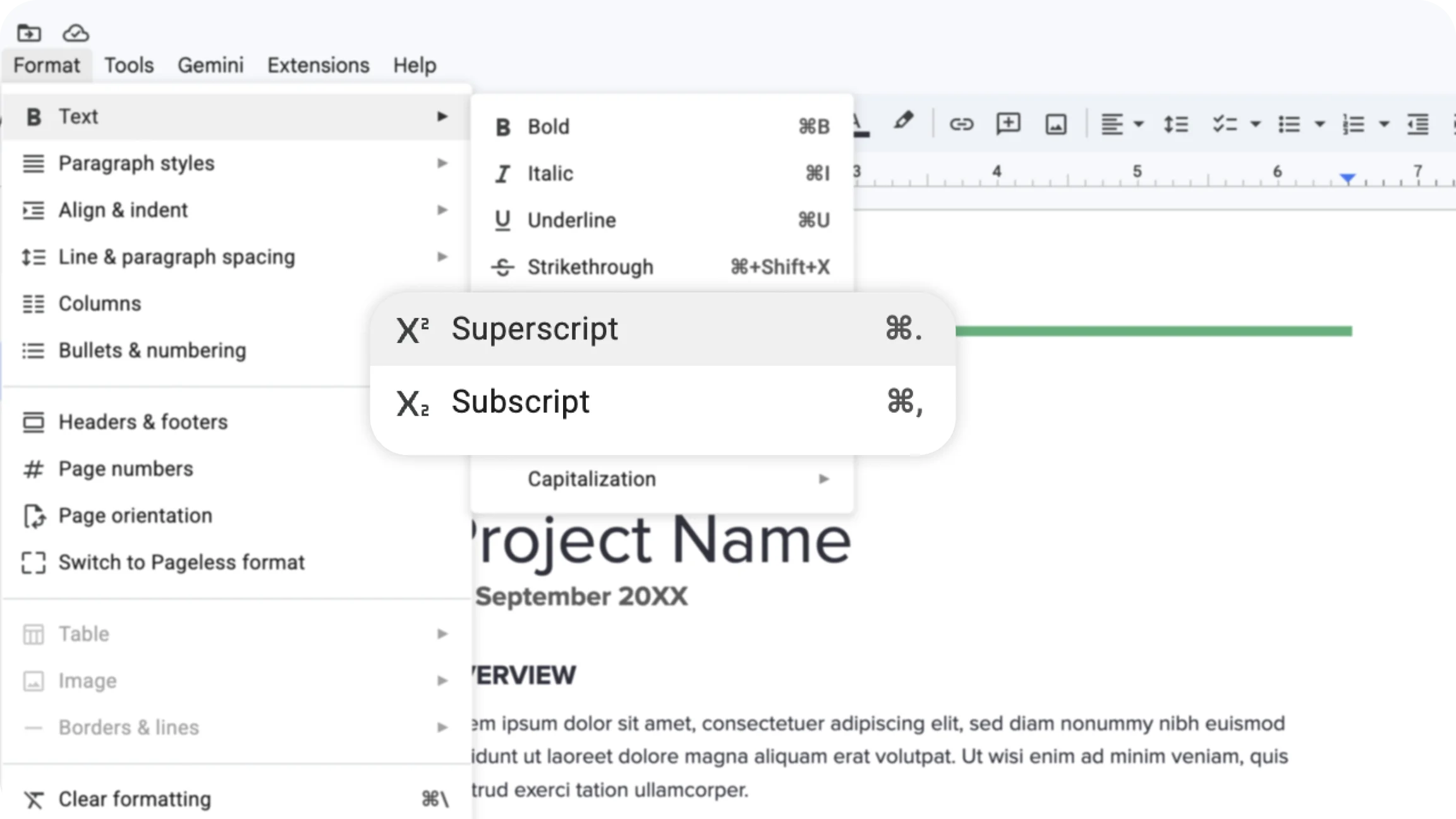
The Fastest Way to Write Exponents in Google Docs
The fastest way to write exponents in Google Docs is the superscript keyboard shortcut. This shortcut formats exponents instantly while typing, avoiding menu navigation. On Windows and Linux use Ctrl + . or Ctrl + Shift + + (varies by keyboard); on macOS use Command + . or Command + Shift + +. Activate the shortcut, type the exponent, then press the shortcut again to return to normal text. This method is best for quick entries like squared values, scientific notation, or inline Google Docs exponents while composing text.
How to Add Exponents Using the Format Menu
Exponents can be added by selecting text and applying superscript formatting through the Format menu. Highlight the character(s) to become an exponent, open Format > Text > Superscript, and the selection becomes superscripted. This is useful when editing existing content, when the exponent shortcut Google Docs is not known, or when precision is needed in structured documents. To remove or adjust, reselect the text and toggle Superscript off. Menu-based formatting helps maintain consistent style across longer documents and is clear for editors who prefer visual controls.
How to Insert Exponents with the Equation Tool
The equation tool allows insertion of exponents as part of structured mathematical expressions. Use Insert > Equation to open equation mode, then type expressions like x^2 or use the toolbar to add superscripted boxes. Equation mode supports complex notation, fractions, and nested exponents, so it is preferred for multi-step calculations, academic papers, or when creating a formal Google Docs insert equation. Equations remain editable as a single object, which helps when revising formulas or exporting documents that require clear math formatting.
Common Issues When Writing Exponents in Google Docs
Exponent formatting may not work correctly due to shortcut conflicts, inherited formatting, or device differences. Common problems include shortcuts mapped to other system functions, pasted text carrying legacy styles, and mobile keyboards lacking easy superscript keys. Fixes include clearing direct formatting (Format > Clear formatting), using the Format menu to apply superscript, or inserting an Equation object for consistent results. On Chromebooks, use the Chromebook-specific how to type exponents on Chromebook shortcut or the Format menu if shortcuts conflict.
AI tools can assist in formatting mathematical expressions by generating structured text, producing ready-to-insert equation code, or organizing repeated exponent formatting tasks.
Chat Ask AI can help create properly formatted expressions and suggest workflows for ai help with Google Docs formatting without changing document styling manually. Try Chat & Ask AI for free.

